
This documentation describes the Hosted DKIM feature guide for the account/user. The document includes the steps for activation and using the feature.
To support the Hosted DKIM feature the following conditions should be considered:
Your plan should support the Hosted DKIM feature
Your account should be active
A domain should be added to your account
Steps to start with Hosted DKIM:
Go to Hosted Services > Hosted DKIM
Select your domain
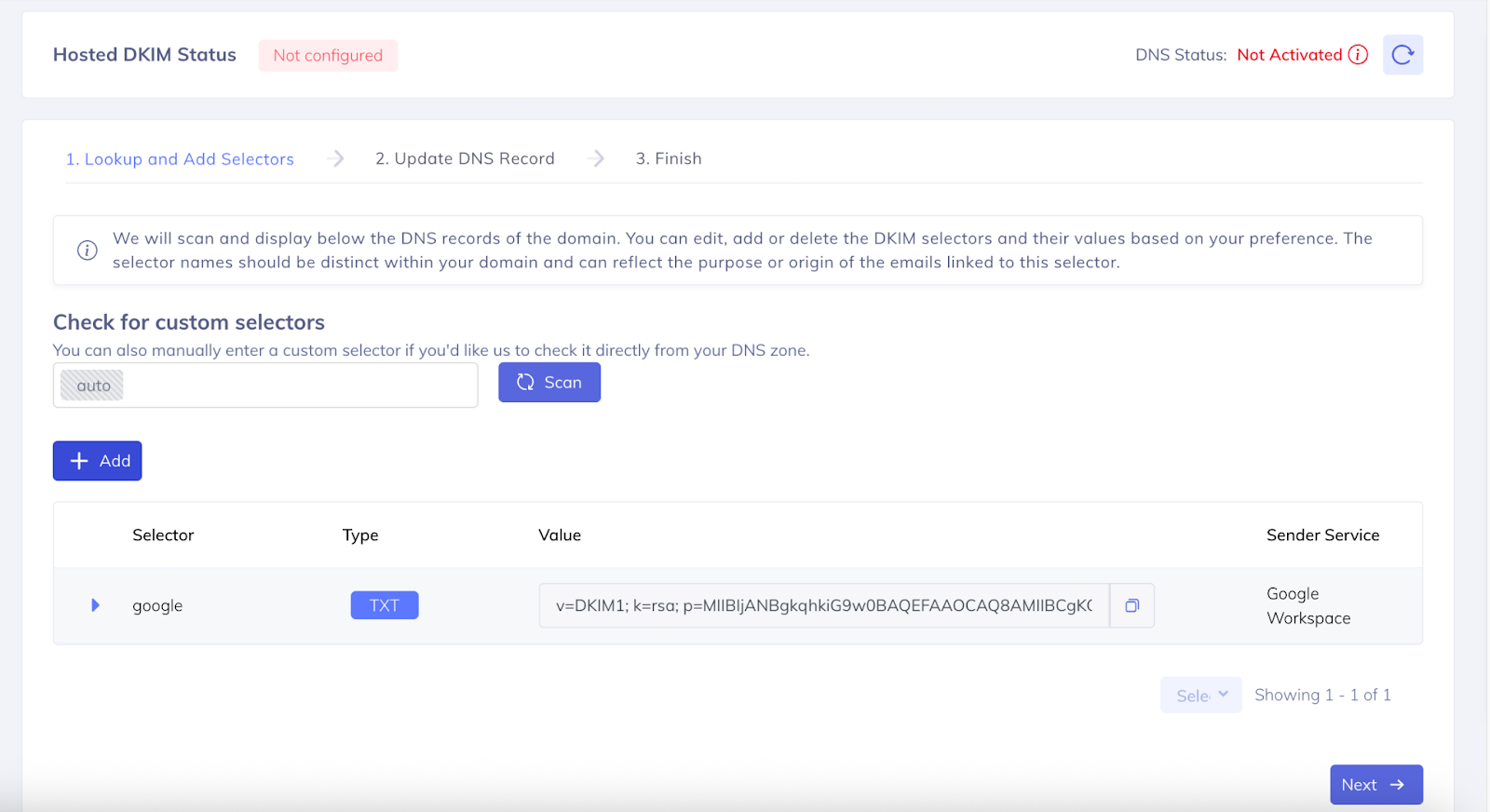
Hosted DKIM - Domain selectors section
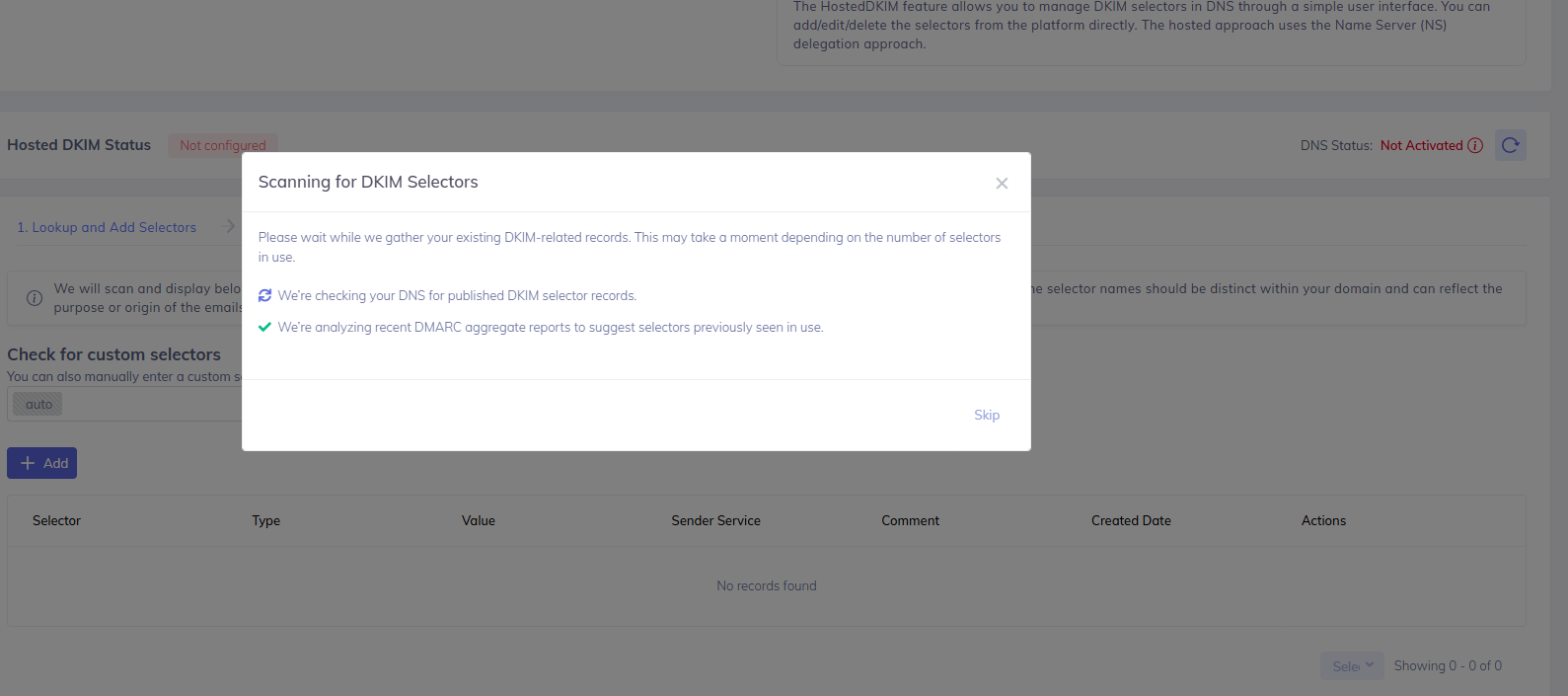
Auto-Scan for DKIM Selectors
As a new enhancement, PowerDMARC has introduced an Auto-Scan feature in the Hosted DKIM interface. When accessing the section for the first time:
The system will automatically scan your DNS zone for any existing published DKIM selector records.
It will also analyze recent DMARC aggregate reports to suggest selectors that have previously been seen in use.
You may also manually enter a custom selector if you'd like us to check it directly from your DNS zone.
Adding DKIM Selectors Manually
First you’ll need to add the DKIM selectors onto the portal.
Note: The selector and public key must be identical to the ones currently used in the DNS. For the selector, the “._domainkey” is automatically appended to the name, so no need to worry about that!
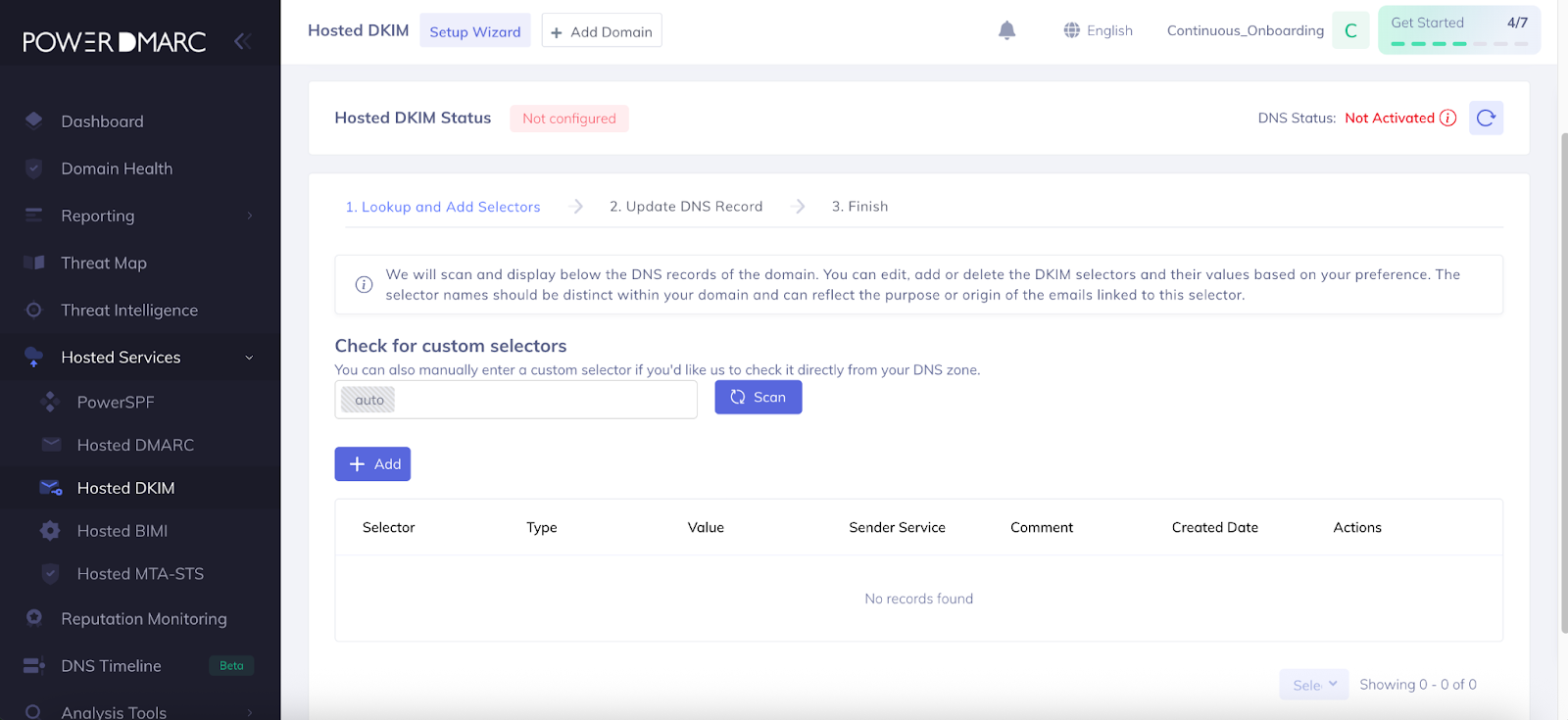
Steps for adding a new selector with TXT record type:
Click the Add New button

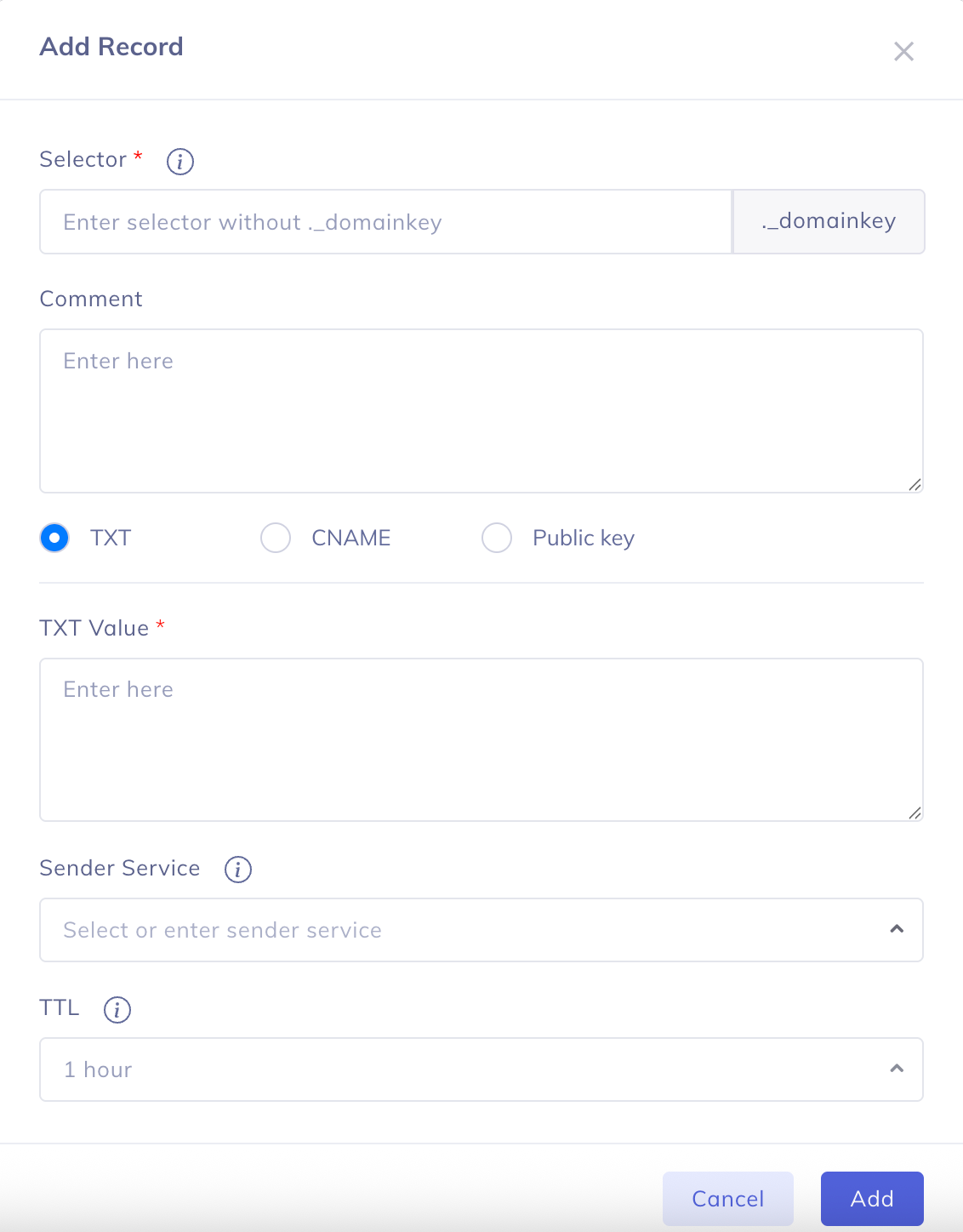
On the opened modal type the selector name (ex. Google)
Add comments if needed (optional)
Select one of the options TXT(the full DKIM record including tags), CNAME (CNAME value provided by 3rd party services), and Public Key(the value of DKIM record coming after p). You can generate the DKIM record value on the PowerDMARC’s generator tools > DKIM record generator section or add a record provided by 3rd party services.
Add or select an already existing sending service (To add a new sender service, type your service name and click on Create)
Select the TTL (Time To Live)
Click the Add button
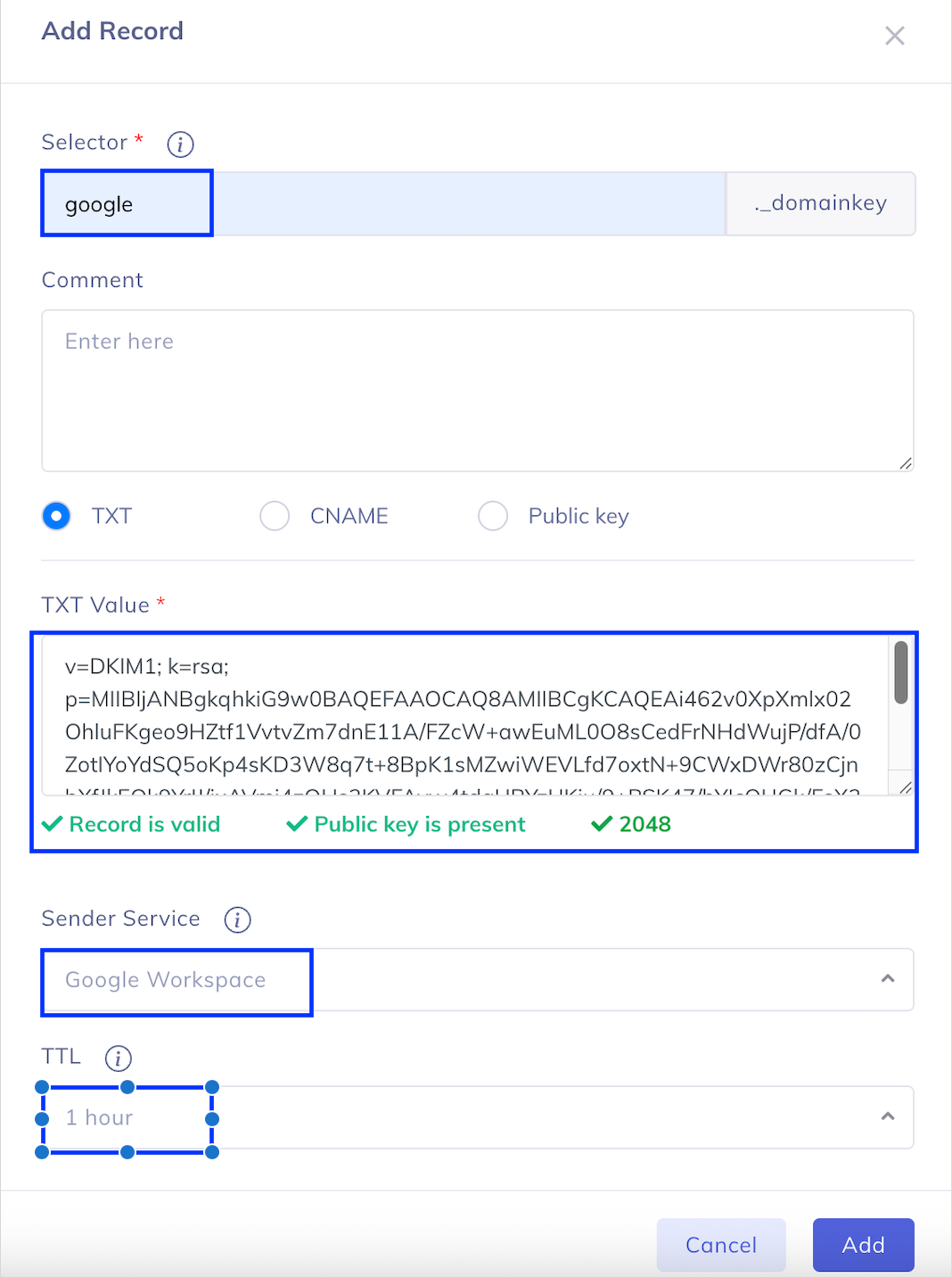
Your key is added!
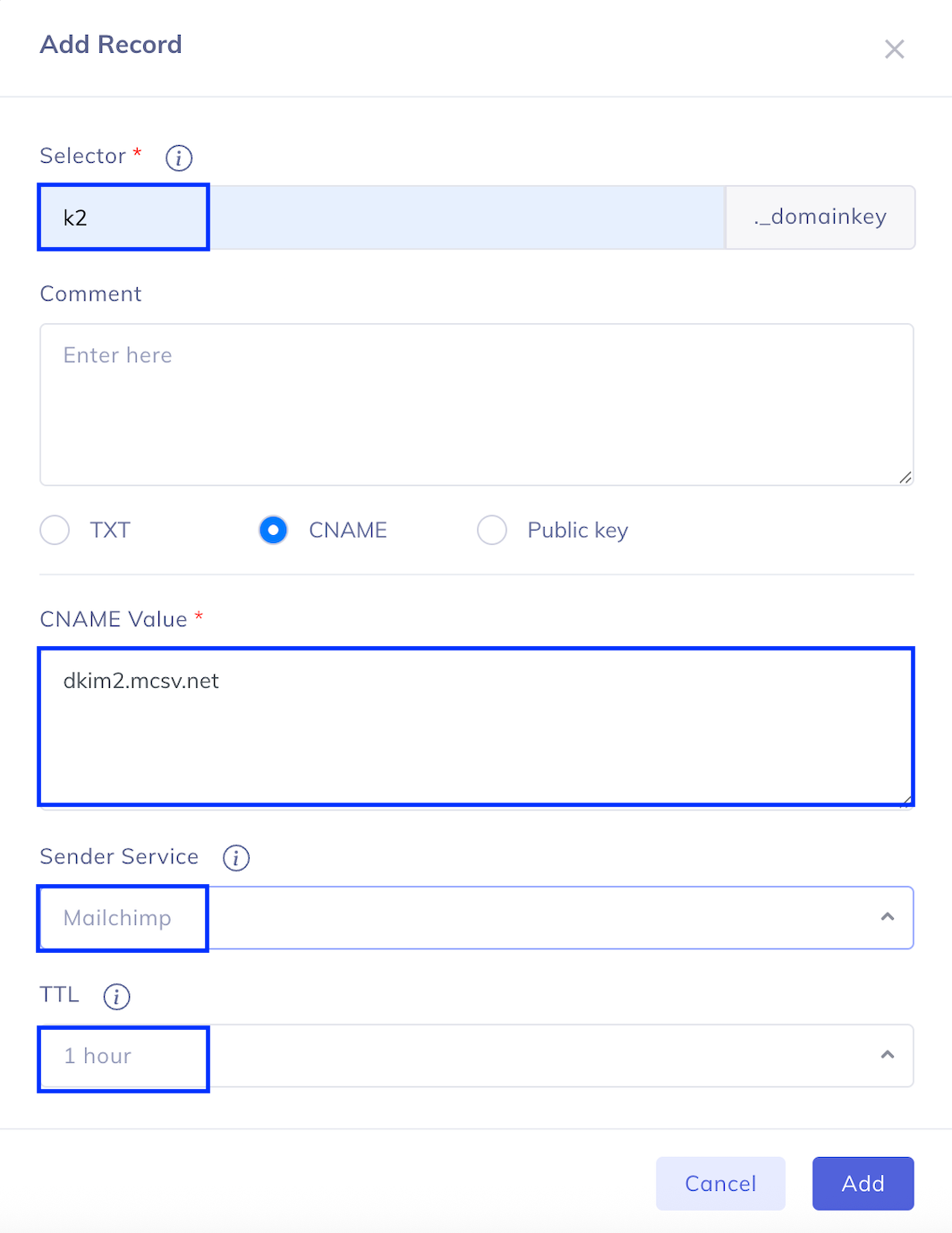
Adding a new selector with CNAME record type using Mailchimp’s CNAMEs:
(The only difference between a CNAME record type DKIM key is the Record value)
The record value of a CNAME type DKIM key will point to a 3rd party server (Microsoft, Google, Mailchimp), which will respond with a TXT value for the key.
Mailchimp provides two CNAME records with two selectors.
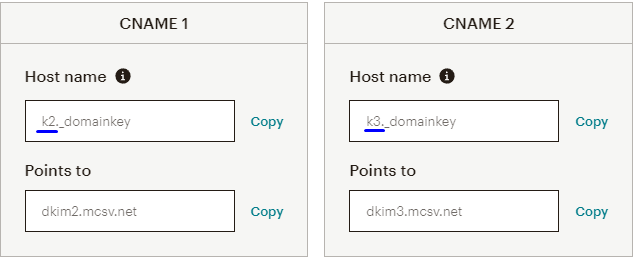
Note: You need to copy and add to the selector field in Hosted DKIM only the DKIM selector values k2 and k3 (see the screenshot above for selector values and screenshot below selector filed on the Hosted DKIM section)
The value of the “Points to” field should be pasted to the CNAME section while adding a selector on Hosted DKIM. (see the screenshot below)
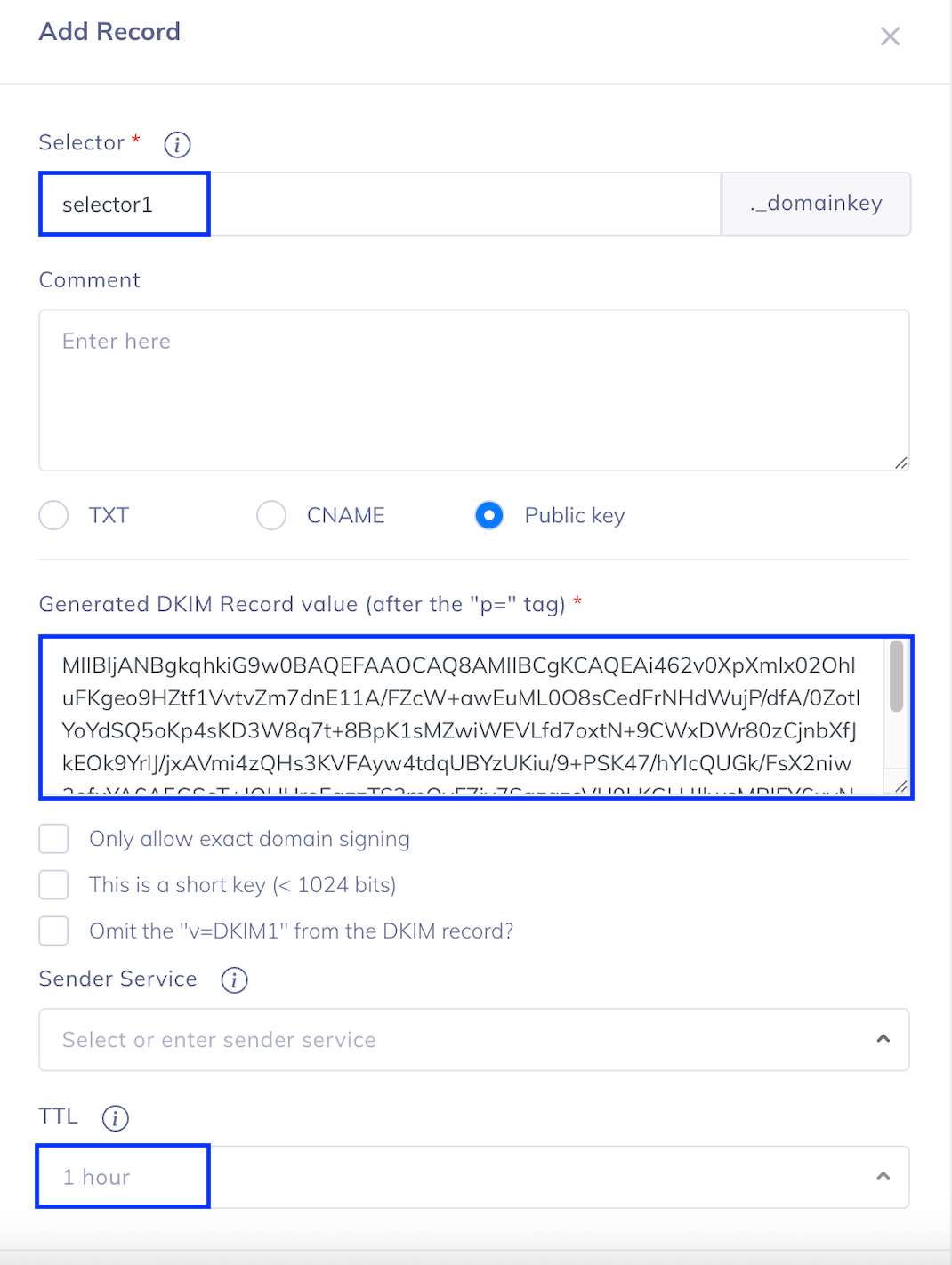
Adding a new selector with PUBLIC KEY record type:
Note: You must add the value coming after the p tag (see the screenshot below)
Type your selector name
Add comments if any (optional)
Insert the generated DKIM record value and click the Add Record
Select or create a sender service
Select the TTL
Note: Check the “Only allow domain signing” box only if the TXT record value contains the tag ‘t=s’. This is available only for TXT record keys

Now that we have the DKIM records we need, we can click on
Note: You will now need to add a DKIM NameServer (NS) record to your DNS zone to activate and manage the domain’s DKIM keys within the PowerDMARC system.
Steps for the activation of the Hosted DKIM feature:
Copy the Hostname and value of the NS record and add it to your DNS.
You may also use PowerDMARC One-Click Auto DNS Publishing with Entri to publish the DNS record.
Note: DNS record type is NS (see the screenshot below)
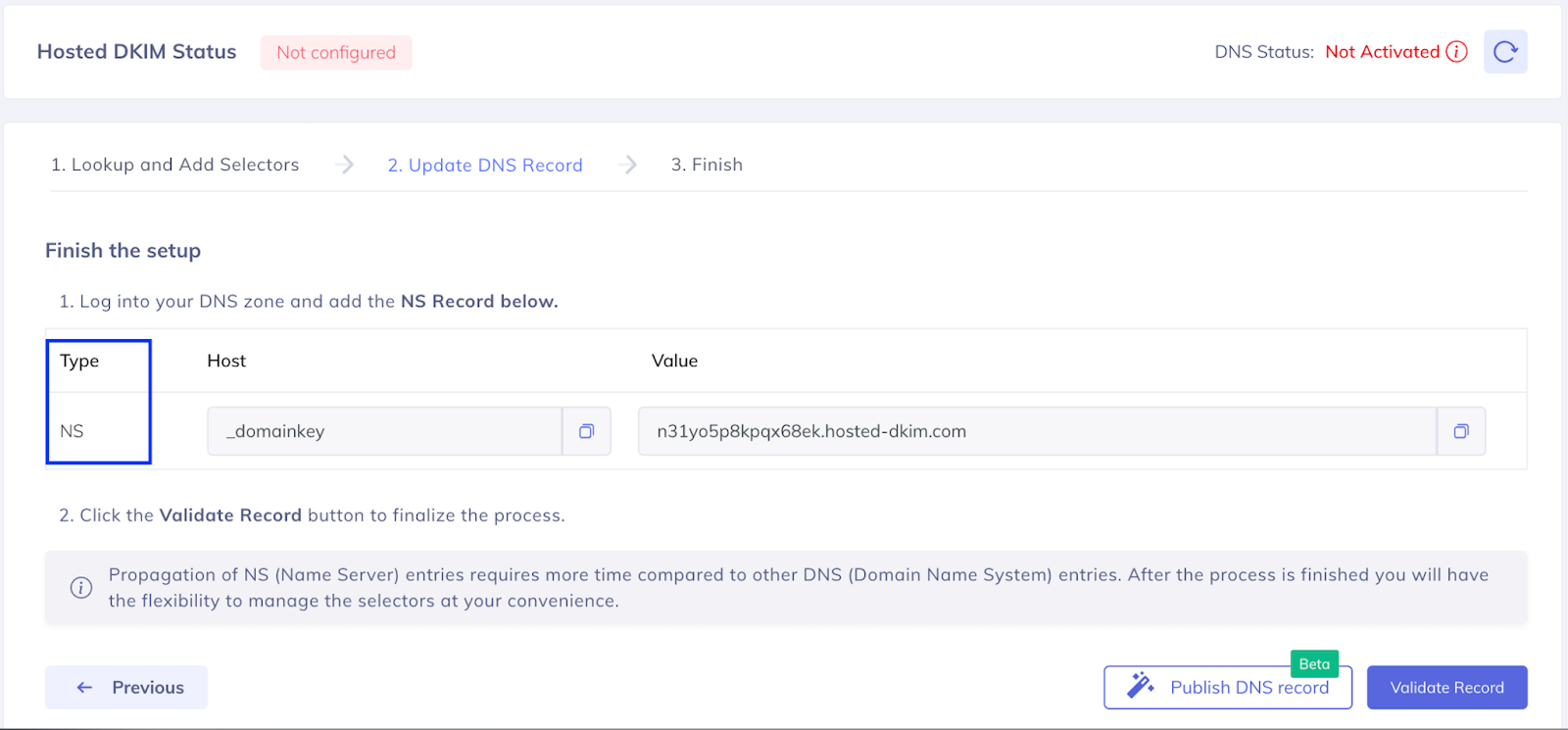
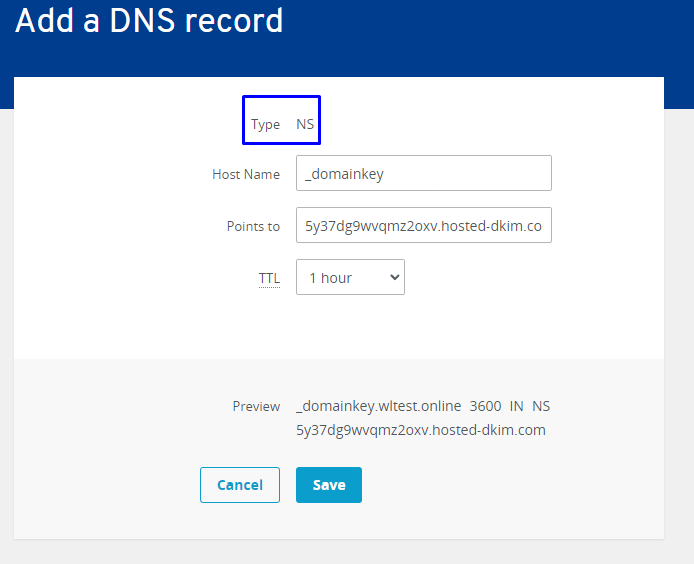
Once the record is added to your DNS go back to the Hosted DKIM section and click the Validate Record button
Note: To fully propagate the DNS records it can take up to 48 hours
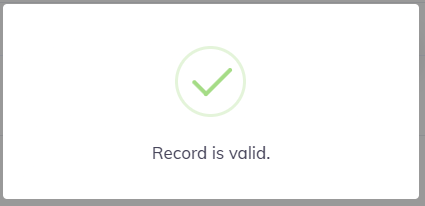
Once the domain is validated, the pop-up with the Record is valid sign is shown.
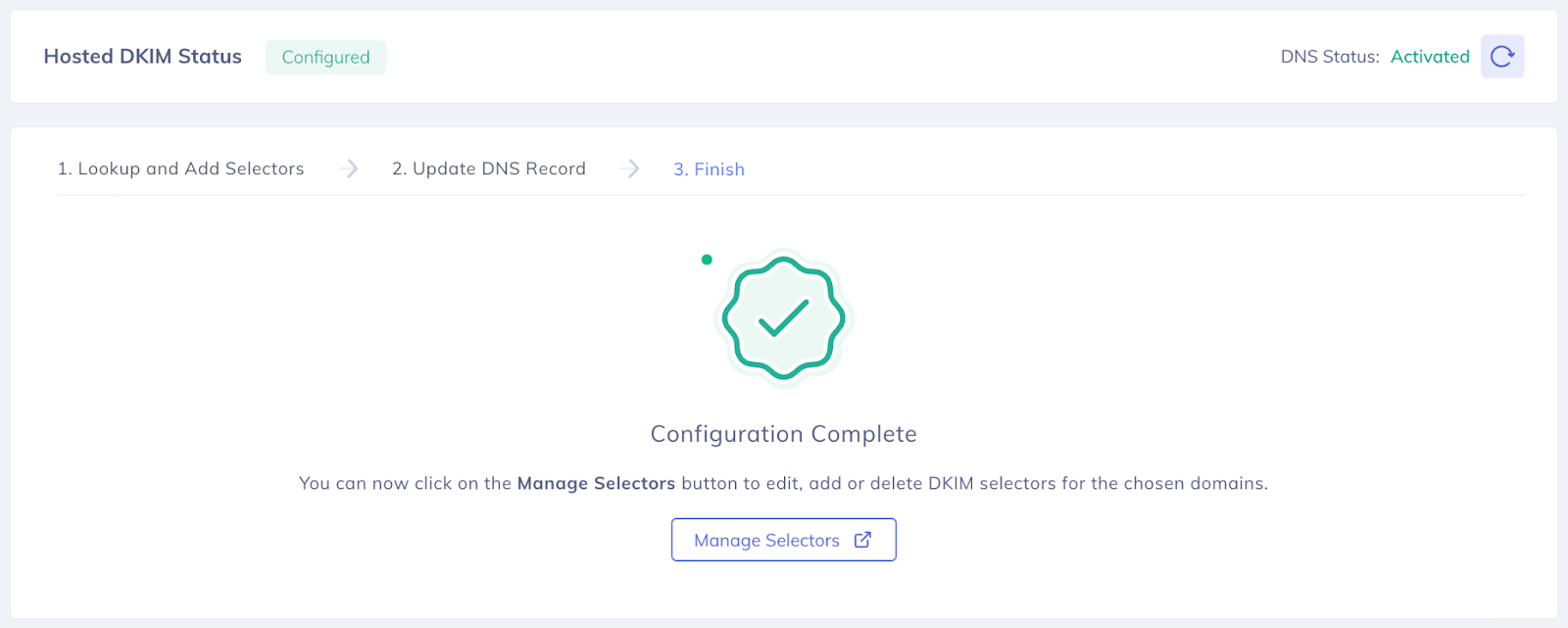
You’re now all set with Hosted DKIM!
Best Practices for Configuring Hosted DKIM
To ensure a smooth Hosted DKIM implementation and avoid DKIM lookup inconsistencies or authentication failures, we recommend following the below best-practice workflow.
When a domain is added to the Hosted DKIM section within the PowerDMARC portal, the platform automatically performs the following:
Scans the public DNS zone of the domain
Reviews DMARC Aggregate Reports received for the domain
Identifies available DKIM selectors and records currently in use
Based on these scans, the detected DKIM records are displayed within the Hosted DKIM UI.
Recommended Workflow
Step 1: Review Existing DKIM Records
As a first step, we strongly recommend reviewing all DKIM records currently published within your DNS for the specific domain.
The Hosted DKIM UI may already display many of these records automatically based on DNS scans and aggregate report analysis. However, in some cases, certain DKIM selectors may not appear automatically.
Therefore, as a best practice:
Compare the DKIM records shown in the Hosted DKIM UI with the DKIM records currently published in your DNS
Identify any missing DKIM selectors or records
Manually add any missing DKIM records into the Hosted DKIM UI one by one
This ensures that all active DKIM selectors for the domain are properly managed under Hosted DKIM.
Step 2: Publish the Hosted DKIM Delegation Record
Once all DKIM records have been added into the Hosted DKIM UI, proceed with publishing the Hosted DKIM NS record provided by PowerDMARC.
This delegation enables PowerDMARC’s Hosted DKIM infrastructure to host and manage the DKIM records for your domain.
Step 3: Wait for DNS Propagation
After publishing the NS record, allow sufficient time for DNS propagation across global DNS servers.
Before proceeding further, verify that the NS record is fully propagated and resolving correctly.
Step 4: Remove Old DKIM Records from Your DNS
Once propagation is fully completed and Hosted DKIM is functioning correctly, remove the old DKIM records from your original/client-side DNS zone for that domain.
This is an important best practice because keeping duplicate DKIM records in multiple locations may create lookup inconsistencies for recipient mail servers during DKIM validation, which can potentially lead to authentication failures or unexpected behavior.
After removal, all DKIM management for the domain should occur through the Hosted DKIM section within the PowerDMARC portal.