
This article provides a step-by-step guide to using PowerDMARC's Hosted DMARC feature.
DMARC (Domain-based Message Authentication, Reporting, and Conformance) is an email authentication protocol that builds upon existing SPF and DKIM mechanisms. In simple terms, DMARC verifies whether either SPF or DKIM authentication passes. If at least one of these checks is successful and properly aligned, the email is considered DMARC-compliant. However, if both SPF and DKIM fail, the message results in a DMARC failure, and the configured policy (such as quarantine or reject) may be applied.
Traditionally, setting up DMARC requires creating and publishing a DNS TXT record. Any updates to DMARC policies or configurations involve accessing your DNS, manually editing the record, and saving the changes. This process can become time-consuming and complex, especially for organizations managing multiple domains across different DNS providers.
This is where Hosted DMARC comes in—simplifying DMARC record management and policy enforcement by eliminating the need for constant manual DNS updates. It enables organizations to manage their DMARC configurations more efficiently, all from a centralized platform.
Steps to Set Up Hosted DMARC
Hosted DMARC allows you to host, manage, edit, and apply any changes to your DMARC record directly from the PowerDMARC portal.
To get started, delete your existing DMARC DNS TXT record, if one already exists.
On the PowerDMARC portal, navigate to Hosted Services > Hosted DMARC.
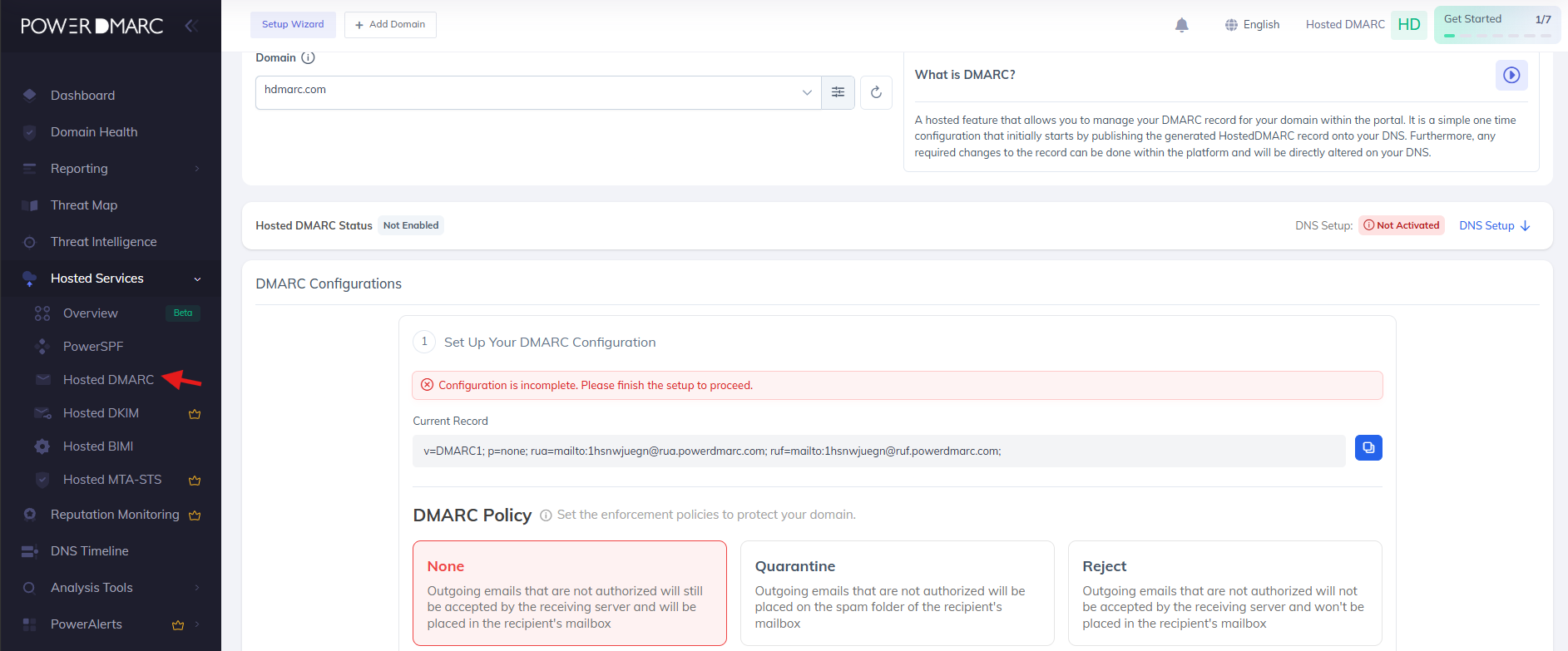
Click on + Add Domain to register your domain if it has not already been added, and select the target domain from the dropdown menu.
Note: Once the domain is added, Hosted DMARC will automatically check for any existing DMARC configuration published in your DNS. If a record is found, the platform will retrieve and reflect the current settings within the Hosted DMARC interface. We recommend reviewing the existing configuration before proceeding.
After reviewing the configuration, click on the DNS Setup option located in the top-right corner of the page. This will redirect you to the DNS setup section.
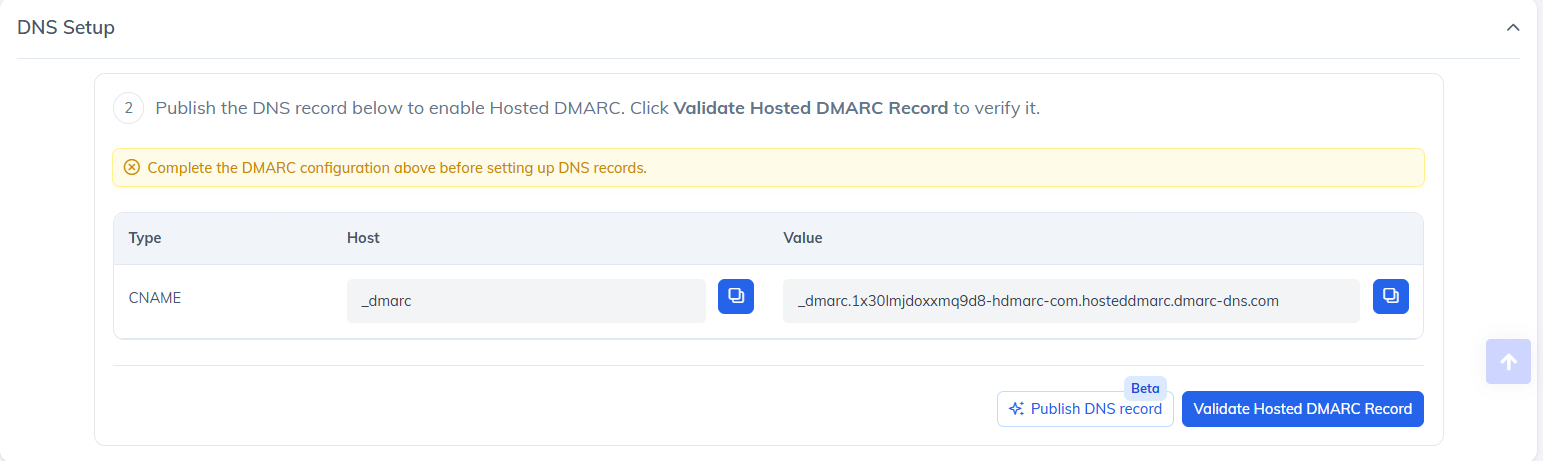
Copy the CNAME record displayed in the Value field and publish it in your DNS using the hostname: _dmarc
You can manually publish the DNS record or use our Auto DNS Publishing feature to simplify the process.
Once the DNS changes have propagated, return to the Hosted DMARC window. The status should now display as Active.
Updating Your DMARC Record and Policies Using Hosted DMARC
Once Hosted DMARC is active, you can edit your DMARC configuration directly from the PowerDMARC portal without needing to modify your DNS records manually.
1. Select Your DMARC Policy
Choose the DMARC policy that best suits your organization's requirements:
None (Monitoring Only)
Quarantine
Reject

2. Enable Testing Mode (Optional)
Hosted DMARC supports the DMARCbis Testing Mode tag (t=y).
Testing Mode allows organizations to validate stricter DMARC policies before full enforcement. When supported by receiving mail servers, Testing Mode causes the published policy to be applied at a lower enforcement level:
p=quarantine; t=y → treated as p=none
p=reject; t=y → treated as p=quarantine
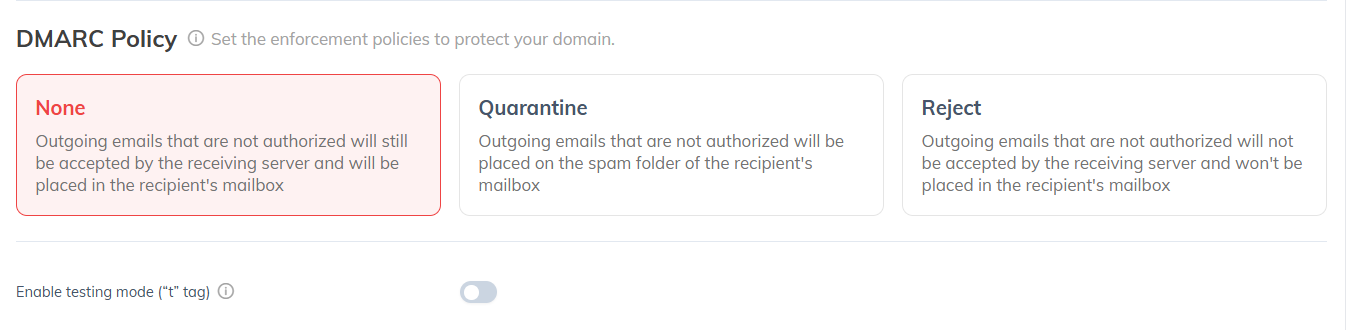
This helps organizations evaluate the impact of policy changes while continuing to receive DMARC reporting data.
Note: Support for the t=y tag depends on receiver adoption of the DMARCbis standard. Some mail providers may continue enforcing the published policy normally.
3. Configure Additional DMARC Settings
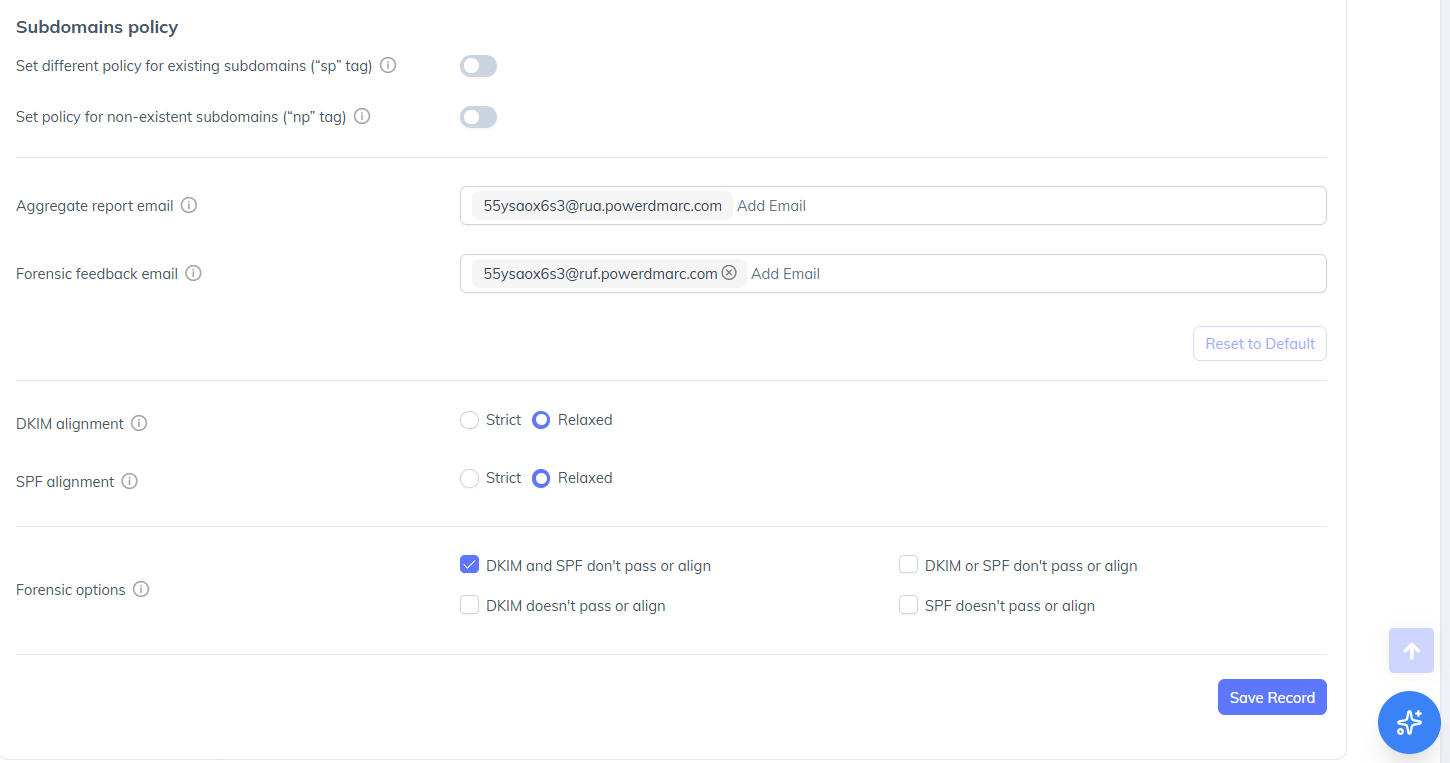
Hosted DMARC allows you to customize additional DMARC record parameters, including:
Subdomain Policy (sp=) for existing subdomains.
Non-Existent Subdomain Policy (np=) for domains or subdomains that do not exist in DNS.
Additional Aggregate Report (RUA) recipients.
Forensic Report (RUF) recipients.
SPF Alignment Mode.
DKIM Alignment Mode.
About Non-Existent Subdomain Policy (np=)
The DMARCbis standard introduces the np= tag, which enables organizations to define a dedicated policy for emails claiming to originate from non-existent subdomains.
This helps protect domains against spoofing attempts that leverage fabricated subdomains that have no valid DNS presence.
4. Save Your Changes
Once you've completed your configuration, click Save Record.
All changes will be automatically published and applied through Hosted DMARC without requiring manual DNS modifications.
Important DMARCbis Changes
Deprecation of DMARC Policy Percentage (pct=)
The DMARCbis standard deprecates the pct= (Policy Percentage) tag.
Previously, organizations could gradually enforce DMARC policies by applying them to only a percentage of failing messages. Due to inconsistent implementation across receiving mail providers, the pct= tag has been removed from the updated DMARC specification.
As a result:
The DMARC Policy Percentage option is no longer available within Hosted DMARC.
Organizations should no longer rely on percentage-based policy rollouts.
DMARC policy progression should be managed using authentication monitoring, DMARC reporting, and, where appropriate, the DMARCbis Testing Mode feature.
Receiver Support Considerations
DMARCbis introduces new tags such as:
t= (Testing Mode)
np= (Non-Existent Subdomain Policy)
Support for these tags may vary depending on the receiving mail provider. Organizations are encouraged to continue monitoring DMARC aggregate reports and validate authentication alignment before moving to stricter enforcement policies.
To get started with Hosted DMARC, sign up for a free trial or contact the PowerDMARC team for assistance.