
Inbox Placement Analyzer: Deliverability Analysis and Reporting
Overview
After an Inbox Placement test is completed, PowerDMARC generates a detailed report showing how mailbox providers handled your email and highlighting any issues that may affect deliverability.
The report helps answer three important questions:
Did the email reach the inbox?
Are there any authentication or content-related issues?
What should be fixed to improve future delivery?
This article explains how to interpret the results and understand the recommendations provided.
Important Note: This feature is available on Enterprise Tier only.
Start with the Deliverability Summary
The Deliverability Summary provides a high-level view of your test results.
Here, you can quickly review:
Inbox Placement Rate
Domain Security Score
Authentication Status
Placement Distribution
Provider-Level Results
This section is the best place to understand the overall health of your email before diving into more detailed findings.
1. Open the Test Report
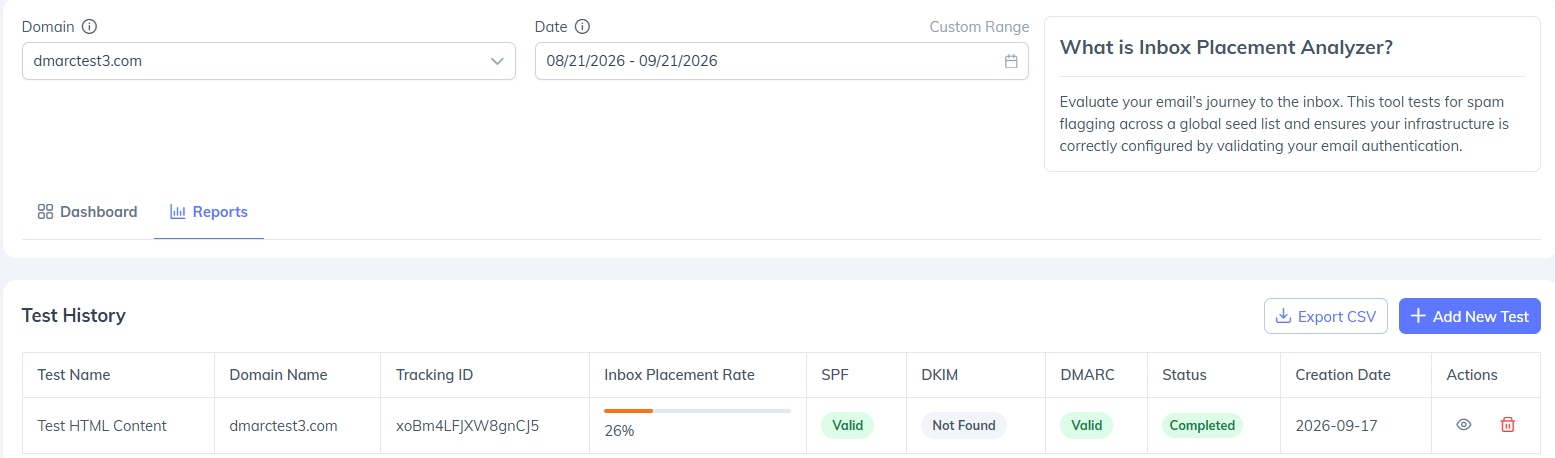
Go to Reports → Test History and select View for the completed test you want to review.
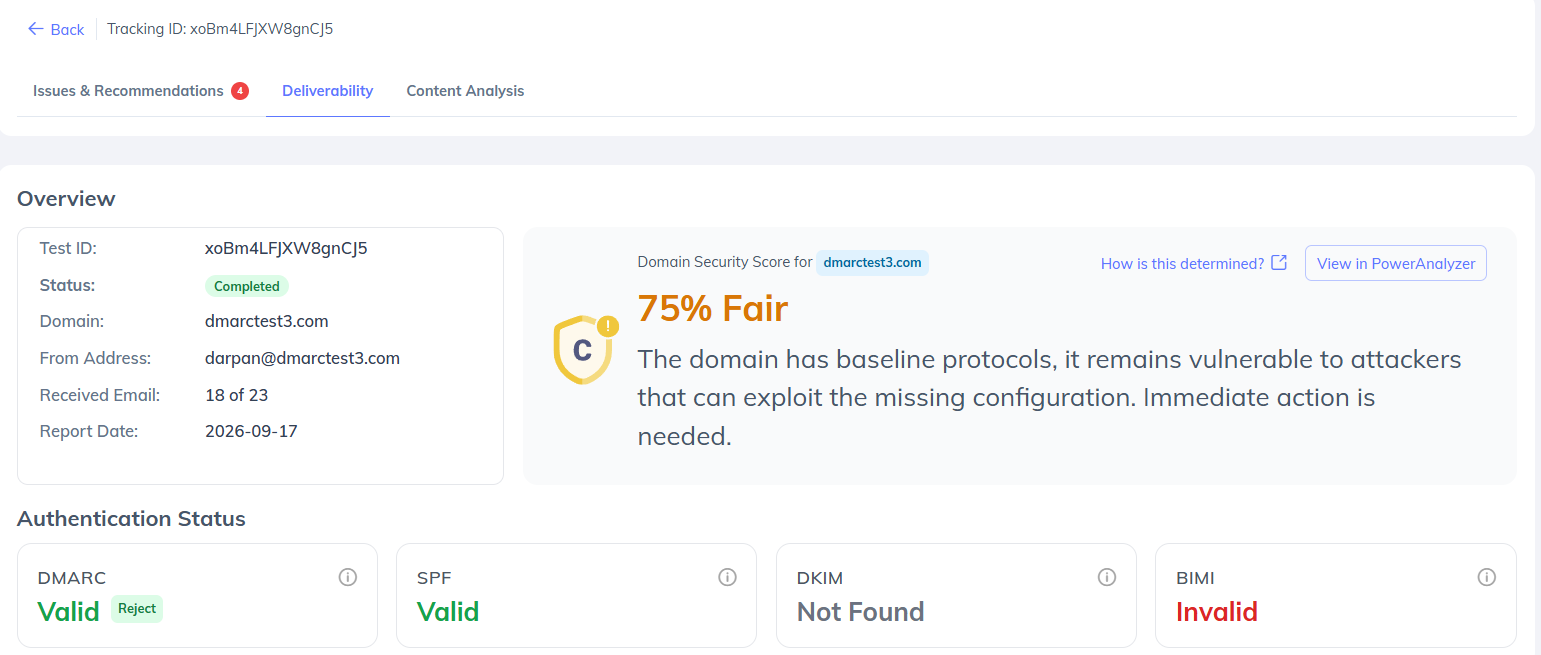
The report displays key test information such as the Tracking ID, domain, From address, received email count, test status, and report date.
2. Issues & Recommendations
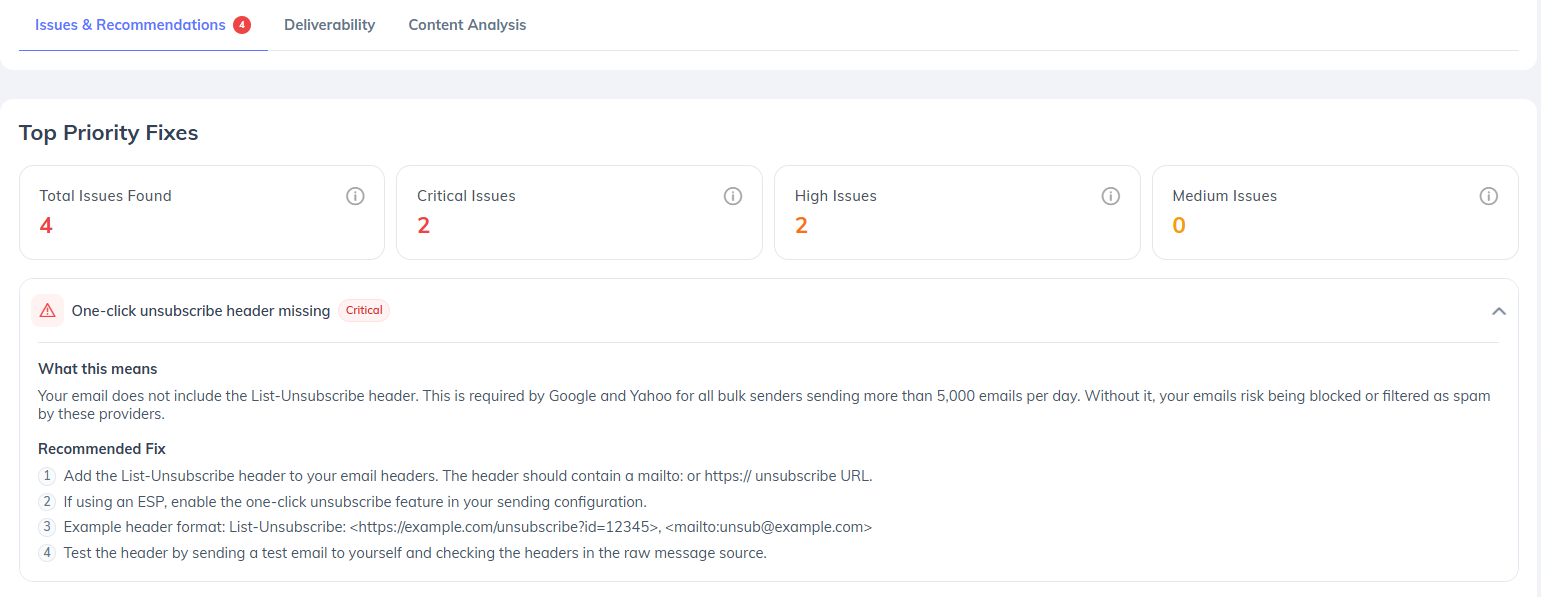
The Issues & Recommendations section provides a consolidated view of problems identified during the test.
Findings can relate to authentication, inbox placement, sending IP and rDNS, links, images, email content, or attachments. Each applicable finding includes its severity, explanation, and recommended resolution. Where relevant, the recommendation identifies the specific URL, IP address, or HTML element involved.
Issues are prioritized by severity so that you can address the most significant findings first.
3. Deliverability
The Deliverability section provides detailed information about authentication and mailbox placement.
Authentication
The Authentication Status section displays the results for DMARC, SPF, DKIM, and BIMI, along with relevant authentication details.
Authentication results should be considered together with placement results. Passing authentication does not, by itself, guarantee inbox placement.
Inbox Placement
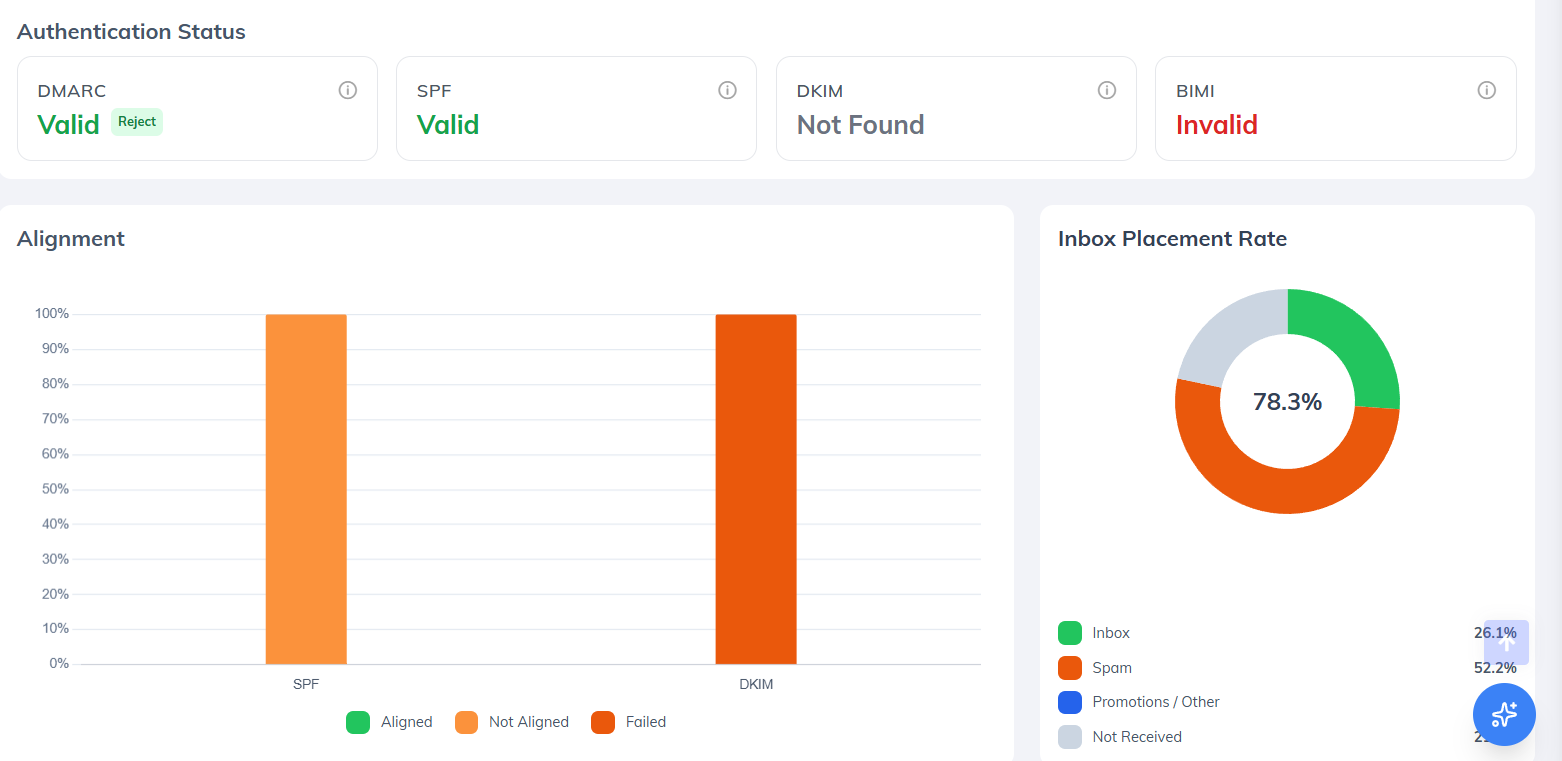
The placement results show how the test email was classified across the selected mailbox providers, including Inbox, Spam, Promotions/Other, and Not Received, where applicable.
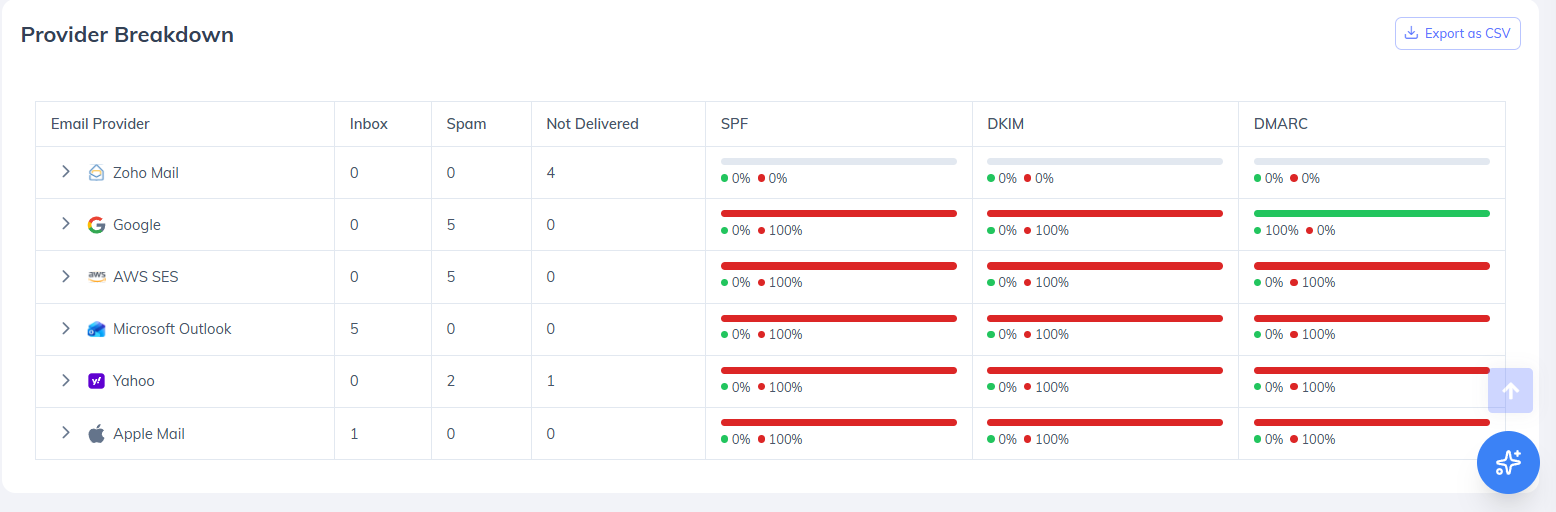
Provider Breakdown
Provider Breakdown provides provider-level authentication and delivery results, allowing you to identify differences between mailbox providers. Available results can also be exported as CSV.
Analyze Your Email Content
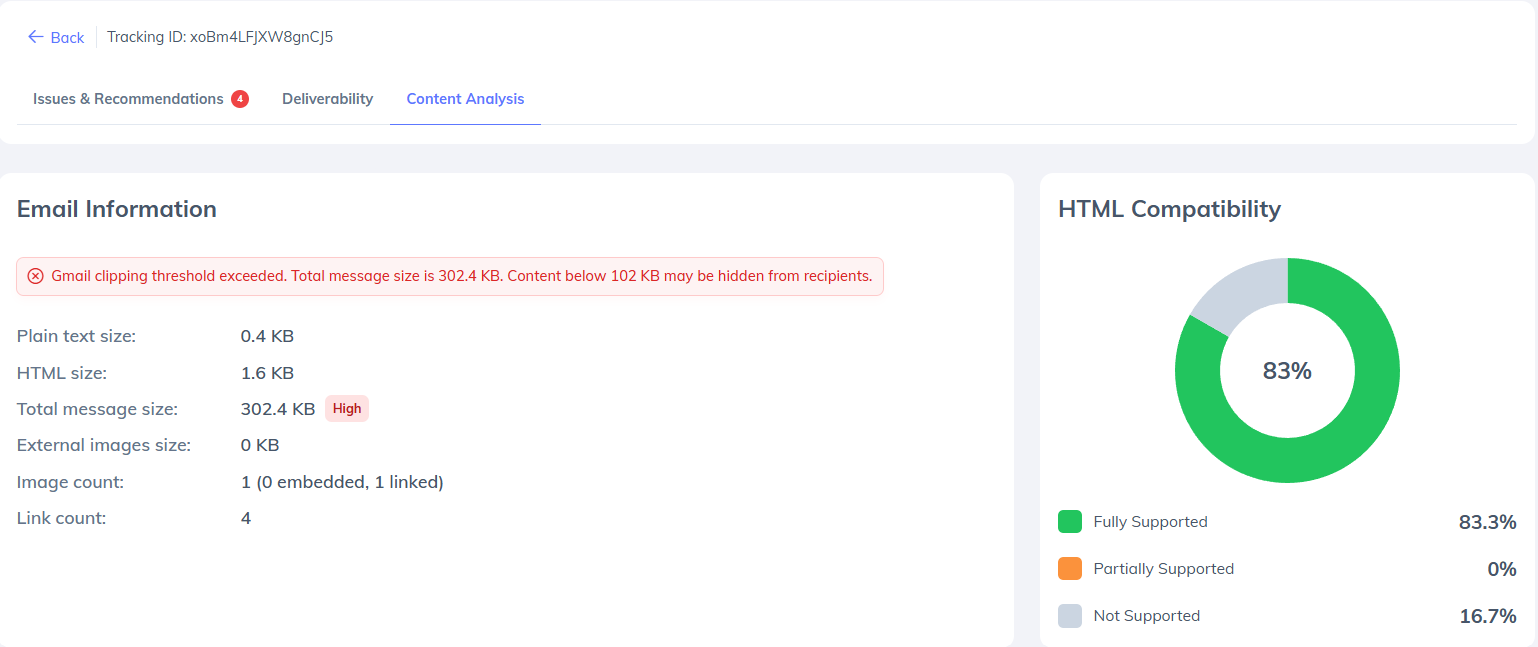
The Content Analysis section helps identify elements within the email itself that may impact deliverability or user experience.
Email Information
This section provides a snapshot of the email's structure, including:
Message size
HTML content size
Plain-text content size
Total links
Total images
If the message exceeds Gmail's clipping threshold, a warning will be displayed to indicate that recipients may not see the entire email.
Link Analysis
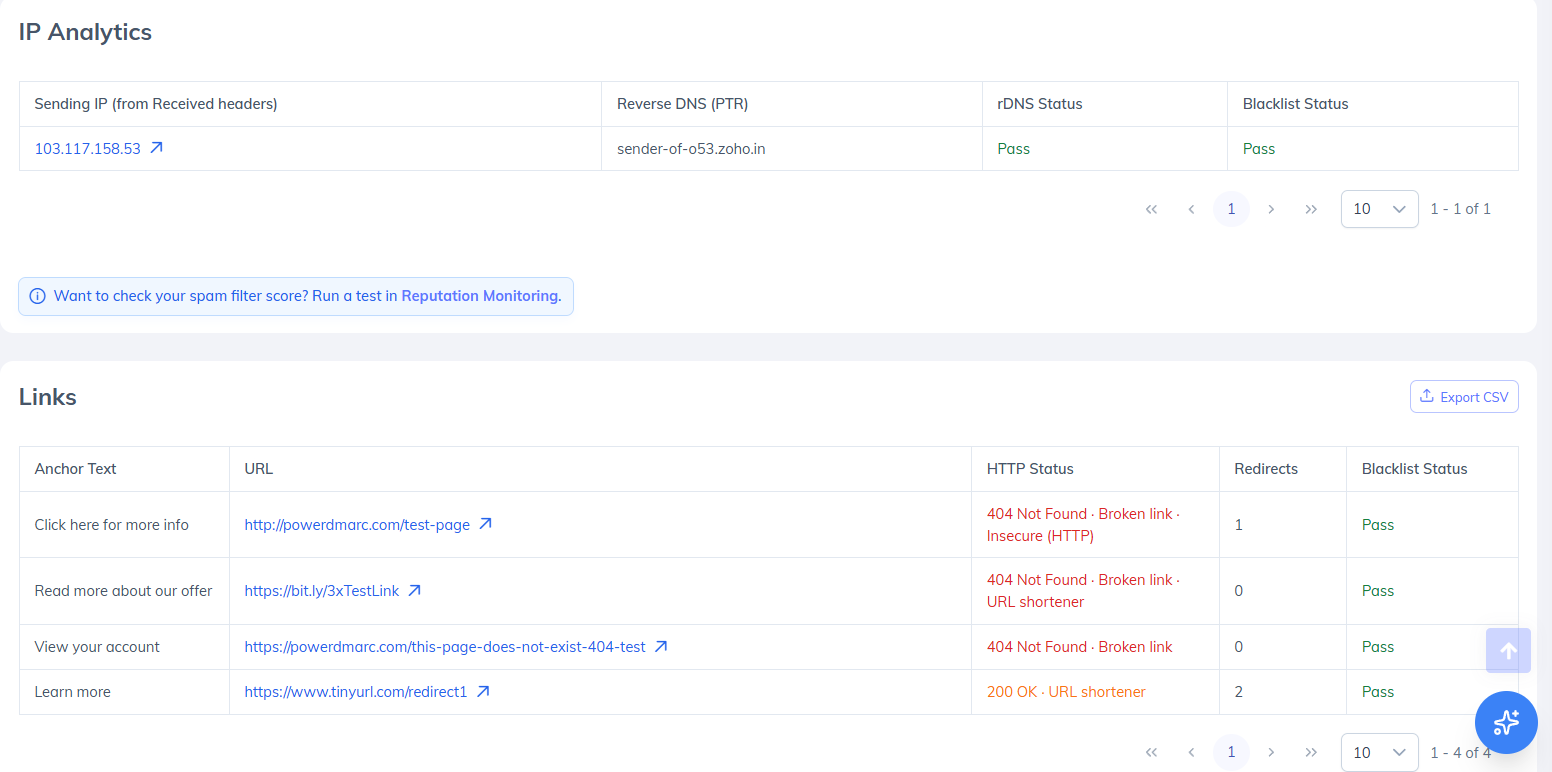
Every link found in the email is evaluated for potential issues.
The report may highlight:
Broken links
Insecure HTTP links
Blacklisted domains
Redirect chains
URL shorteners
Reviewing these findings can help improve both deliverability and recipient trust.
HTML Compatibility
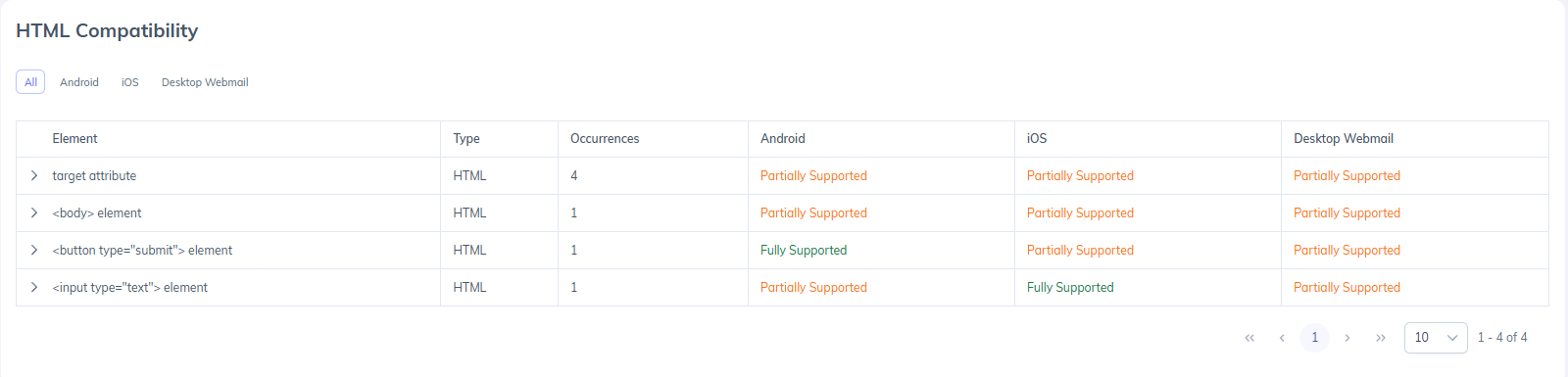
Not all email clients support HTML in the same way.
The HTML Compatibility section identifies elements that may not render correctly across different devices and email applications.
You can use these insights to improve the visual consistency of your emails across platforms.
Content Flags
This section identifies common content-related issues that may trigger spam filters or negatively affect deliverability.
Examples include:
Spam-triggering language
Excessive capitalization
Excessive special characters
Missing plain-text content
Hidden text
Unresolved personalization tags
Excessive image-to-text ratios
If no concerns are detected, the section will display a successful pass result.
Attachment Analysis
If attachments are included in the test email, PowerDMARC evaluates them for potential deliverability risks.
The report may flag:
High-risk attachment types
Large attachments
PDFs containing embedded links
If no attachments are present, this section will not be displayed.
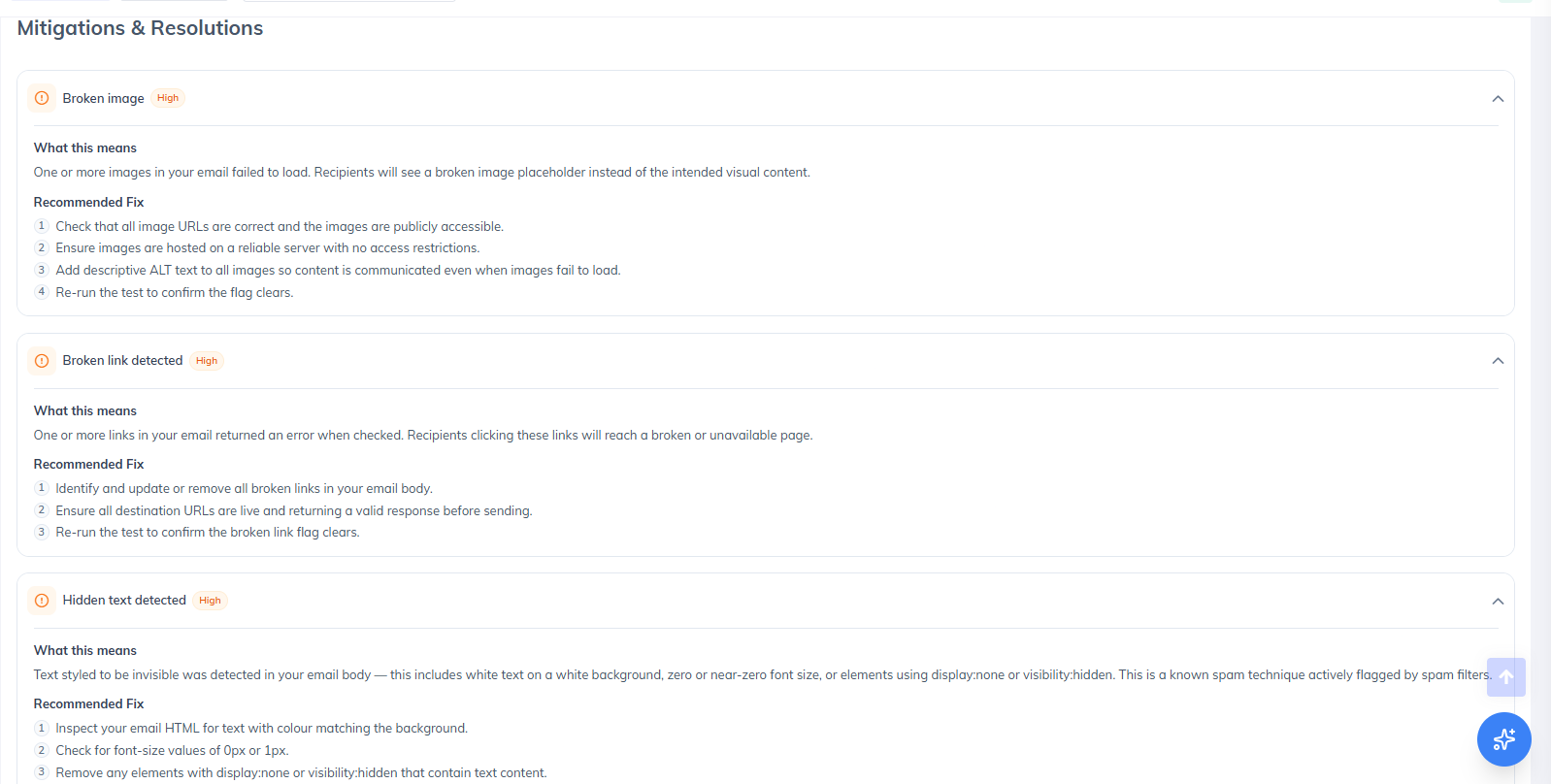
Use the Mitigation & Resolution Section
The Mitigation & Resolution section brings together all identified issues in one place and prioritizes them based on severity.
Each recommendation includes:
A description of the issue
Why it matters
Suggested remediation steps
This section serves as your action plan for improving inbox placement and resolving identified risks.
After implementing the recommended changes, rerun the test to confirm that the issue has been resolved.
Track Performance Over Time
The Inbox Placement Analyzer Dashboard provides historical reporting across all tests.
Use the dashboard to monitor:
Authentication trends
Inbox placement trends
Provider-specific performance
Overall deliverability improvements
Regular testing helps identify recurring issues and measure the impact of remediation efforts over time.
Exporting Results
Reports can be exported for internal review, compliance audits, or stakeholder reporting.
Available export formats include:
PDF reports
CSV exports
Best Practice
Inbox Placement results should be reviewed as a complete picture rather than focusing on a single metric.
A successful inbox placement strategy combines:
Strong email authentication
Clean email content
Healthy links and attachments
Consistent monitoring and testing
By regularly reviewing reports and addressing identified issues, you can improve email deliverability and increase the likelihood of reaching recipient inboxes consistently.